
Published: 2026-11-10
本指南按照您的使用顺序,逐一介绍 freebarcodeqr.com 二维码生成器中的每个控件。每张截图中带编号的橙色标记,与截图下方带编号的说明一一对应。第 3 至第 6 步是可选的:普通的黑白码完全够用。
您不需要账户。网站在您的浏览器中生成二维码,绝不会添加水印。这些码是静态码,数据就保存在图案本身之中。它们不会过期,也无法被关停。
第 1 步:选择二维码类型
打开首页上的生成器,选择二维码要包含的内容。共有十种类型:URL、文本、WiFi、vCard、电子邮件、短信、电话、位置、活动和应用。选择类型后,下方的表单会变成该类型所需的字段。
大多数情况用 URL 即可,包括菜单、预约页面和表单。用 WiFi 可以让客人不用输入密码就能连接网络,用 vCard 可以分享联系方式。

- The QR type tabs. On phones and narrow screens, this row appears as a dropdown labeled QR type.
第 2 步:填写信息
在表单中输入您的信息。如果是 URL,请粘贴完整地址,包括 https://。预览会随输入实时更新,您看到的就是将要下载的码。
内容越短,生成的码越简单,也越容易扫描。如果链接很长,而同一页面有更短的地址,请使用较短的那个。
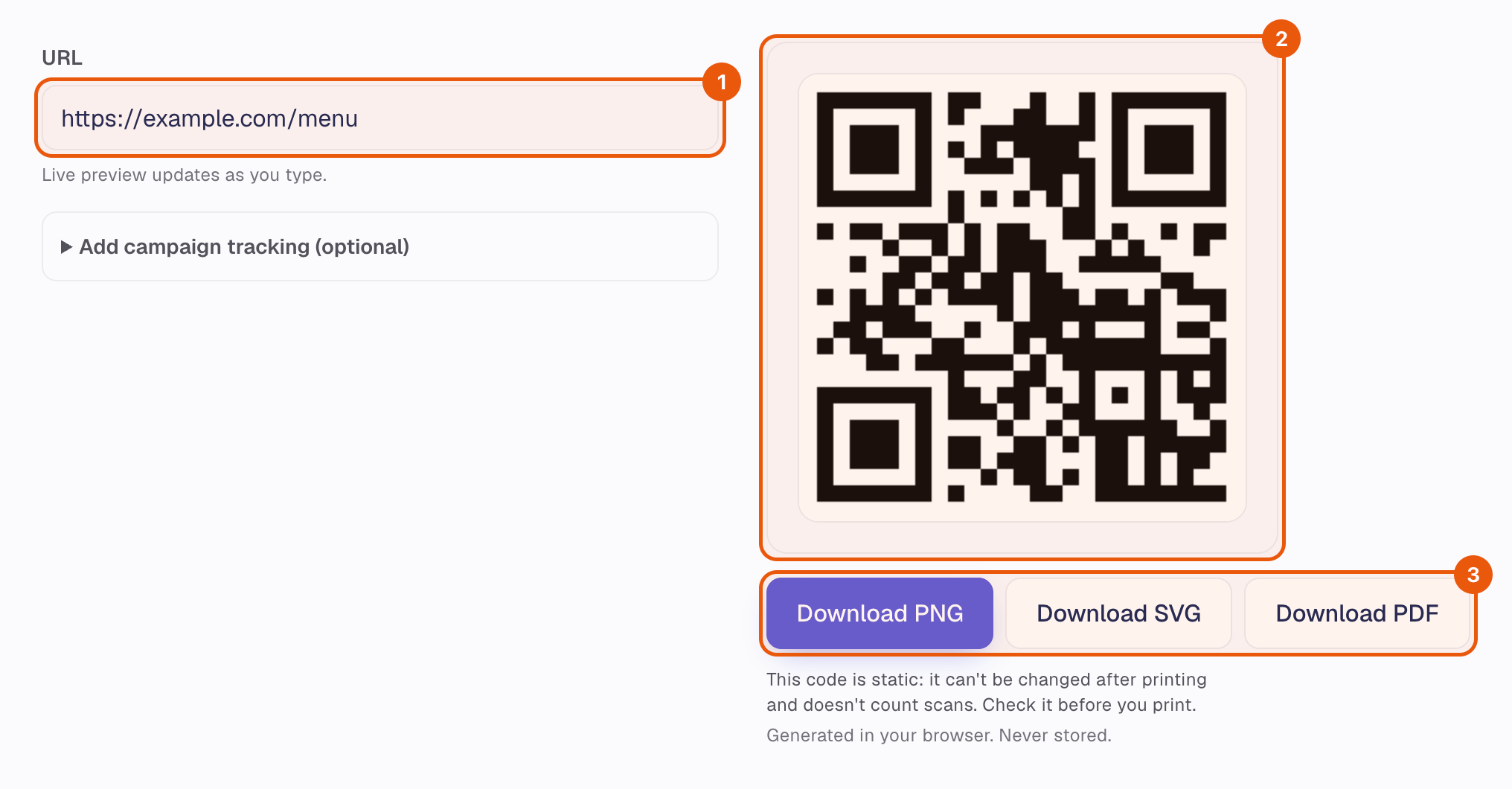
- The field for your content. Other QR types show their own fields here.
- The live preview of your code.
- The download buttons, covered in step 7.
可选:在您自己的分析工具中查看访问
静态码不统计扫描次数,但如果它包含的是网站链接,您仍然可以看到它带来的访问。展开 URL 字段下方的“添加推广跟踪”,填写“来源”,例如 flyer。“媒介”已预设为 qr,“推广活动”和“内容”可以不填。在填写“来源”之前,不会向您的链接添加任何内容。
这会为链接添加 UTM 标记,让访问显示在您自己的分析工具中,例如 Google Analytics。统计的是对您网站的访问,而不是扫描次数,并且只有在该网站安装了分析工具时才有效。标记是已打印二维码的一部分,之后无法更改,所以请保持简短并检查拼写。链接越长,码越密集,请打印得稍大一些。
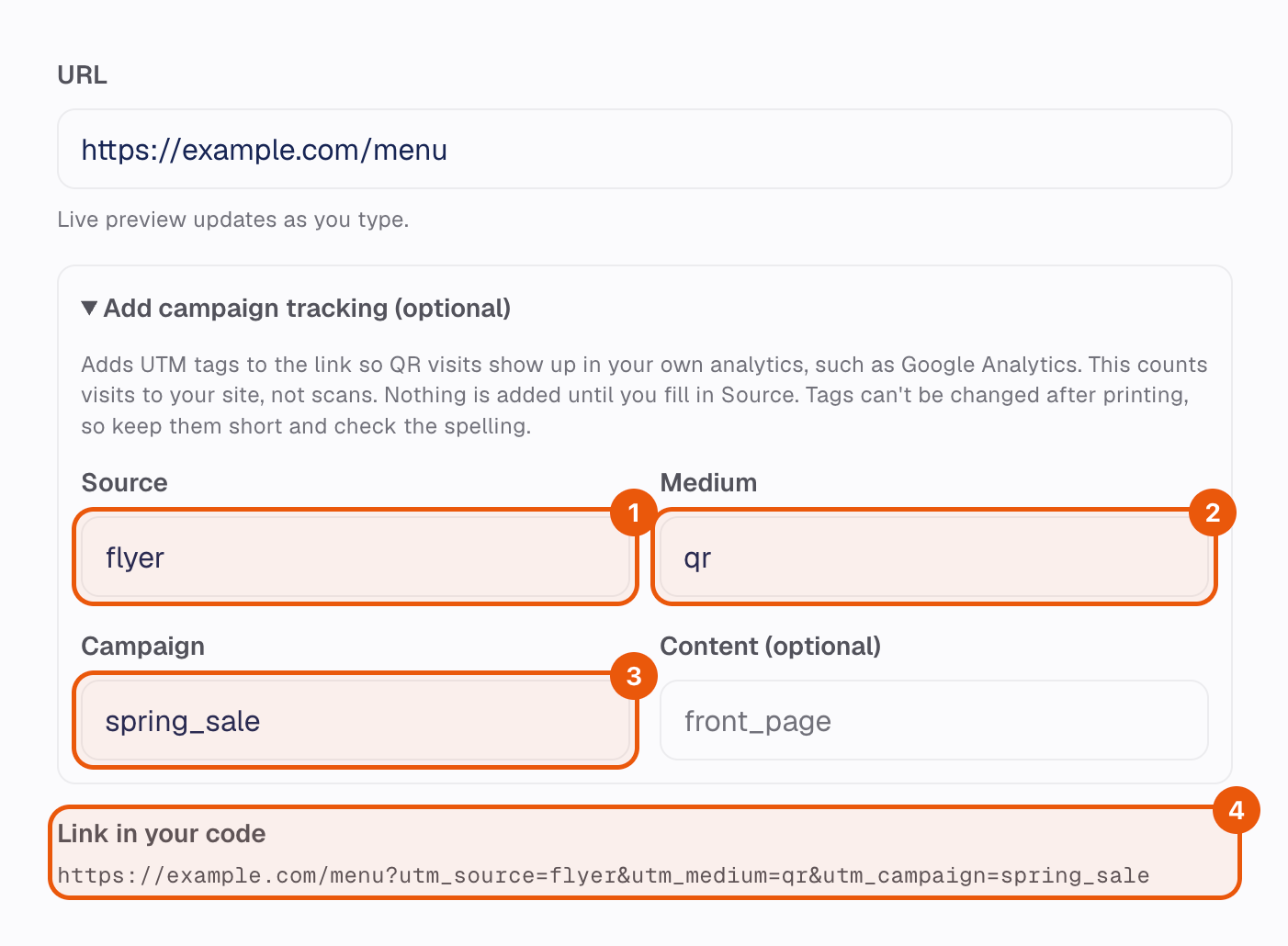
- Source: where the code appears, such as flyer or poster. Required before any tags are added.
- Medium: filled in as qr for you.
- Campaign: an optional name for this promotion.
- The exact link that will go into your code.
第 3 步:选择颜色(可选)
在表单下方设置“前景色”(码的深色部分)和“背景色”。请使用深色前景配浅色背景。深底浅码在一些旧款扫描器上无法识别,如果您选了这种配色,网站会给出警告。
对比度提示会随着您更改颜色而更新。目标是 4.5:1 或更高。低于 3:1 时下载按钮会停用,因为手机无法稳定读取这样的码。“前景渐变”控件可以让码在两种颜色之间过渡,“重置设计”会把所有样式设置恢复为默认值。
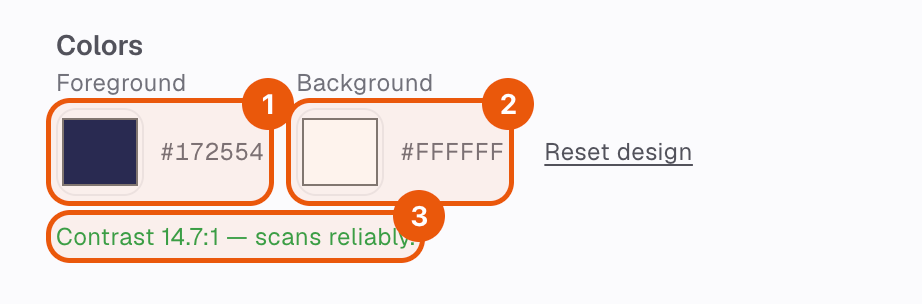
- Foreground: the color of the code itself.
- Background: the color behind the code.
- The contrast check. It tells you whether the color pair will scan reliably.
第 4 步:更改码点形状(可选)
“主体码点”更改的是构成码的大部分的小方块。“定位角”更改的是三个角上的大方块,外框和内点可以分别选择。
这些形状都能扫描,但请在第 8 步检查结果,尤其是把装饰性形状与自定义颜色或徽标搭配使用时。
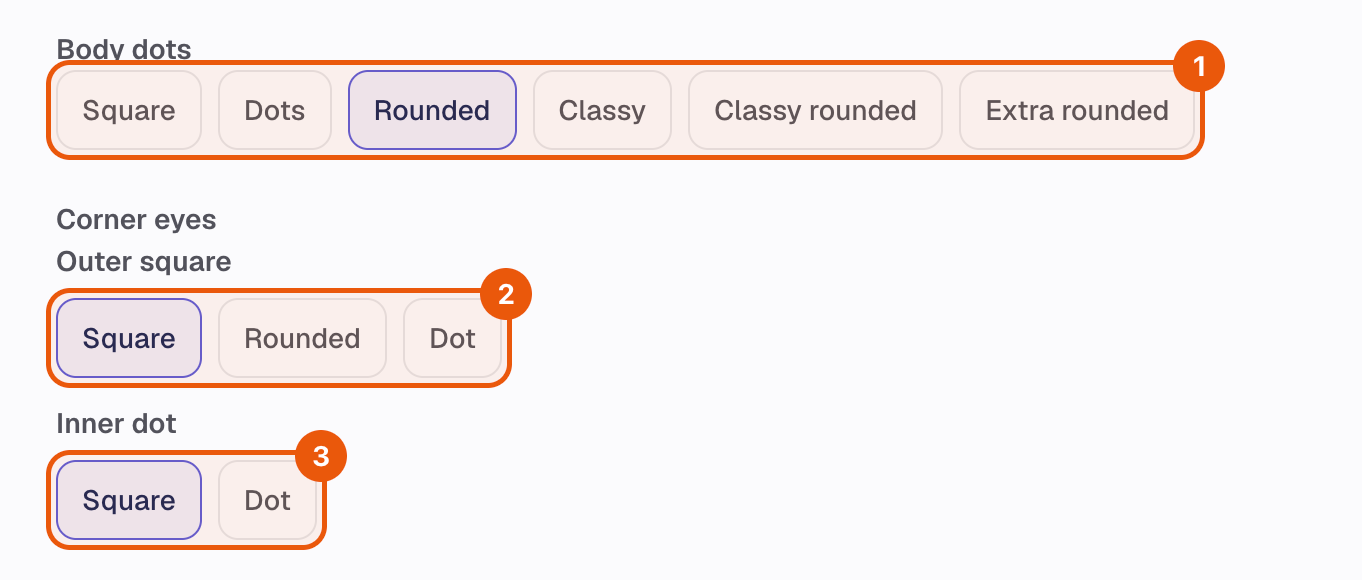
- Body dots: the shape of the main pattern.
- Outer square: the frame of each corner eye.
- Inner dot: the center of each corner eye.
第 5 步:添加徽标(可选)
点击“上传徽标”,选择一个不超过 2 MB 的 PNG、JPG 或 SVG 文件。徽标会显示在码的中央。徽标会遮住一部分图案,因此生成器会自动把纠错等级提高到 H,该等级可以恢复约 30% 的码。
徽标要小。默认大小为码的 25%,超过 30% 时网站会给出警告。请使用边缘清晰的简单徽标。
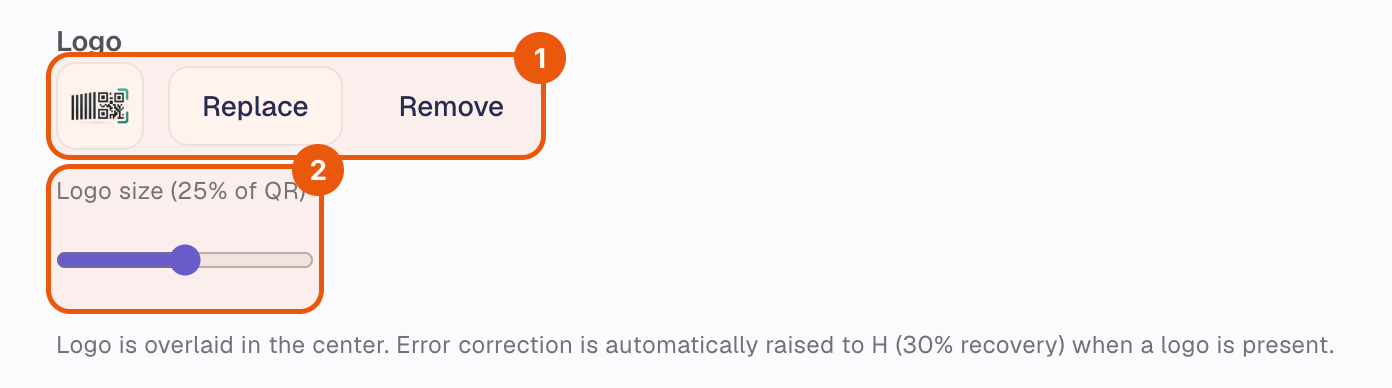
- Your logo, with buttons to replace or remove it.
- The size slider, from 10% to 40% of the code.
第 6 步:添加外框(可选)
外框可以告诉人们这个码是做什么用的。选择“边框”可添加轮廓线,选择“下方标签”或“上方标签”可添加一条文字色带。标签最多 24 个字符,英文字母以大写显示。
请使用简短的引导语,说明对方能得到什么,例如 VIEW MENU 或 JOIN WIFI。外框使用您的前景色,并且包含在下载的文件中。
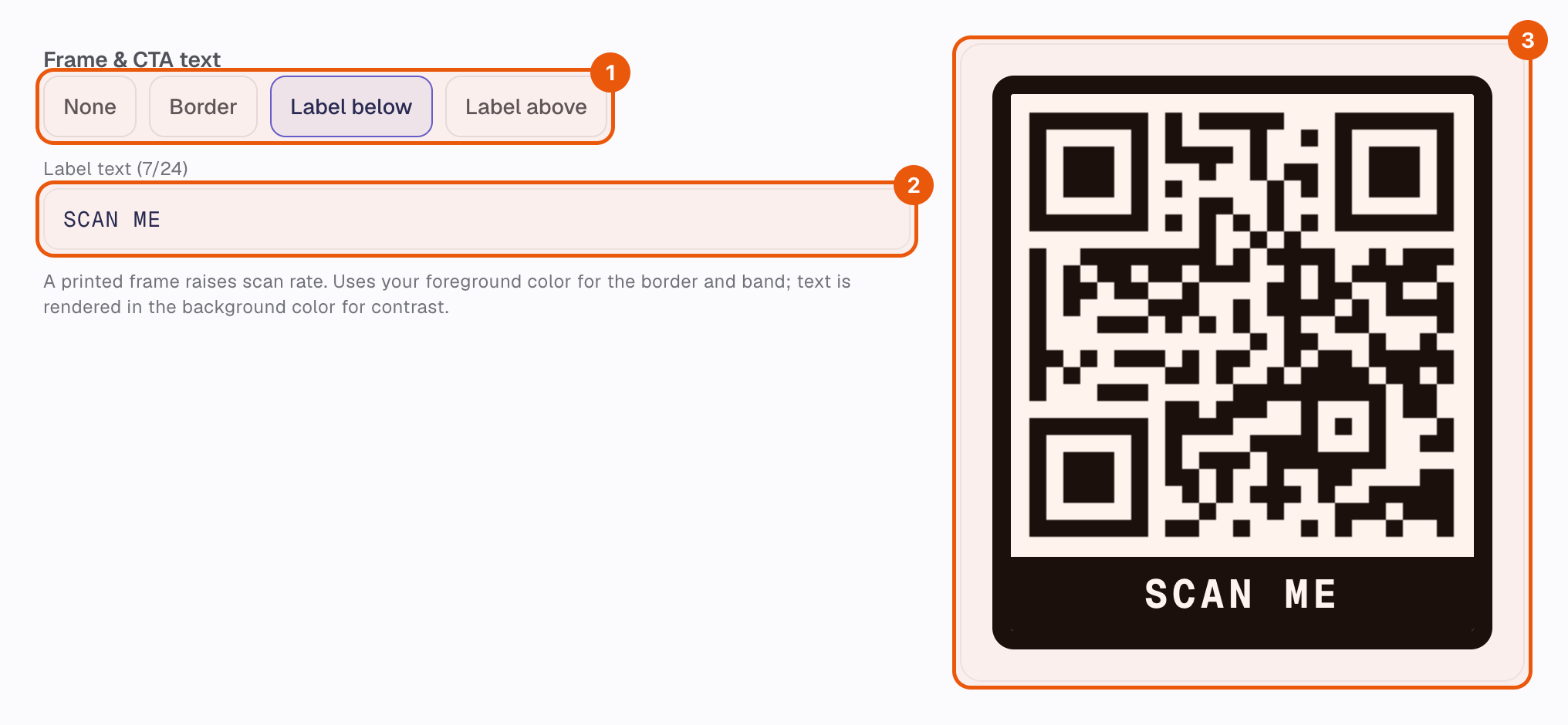
- Frame style: None, Border, Label below or Label above.
- The label text, up to 24 characters.
- The preview shows the frame as it will be downloaded.
第 7 步:下载二维码
根据码的用途选择文件类型。无需账户,没有水印。
专业印刷最适合用 SVG,因为它在任何尺寸下都保持清晰。PDF 便于发给印刷厂或自行打印。PNG 适合网站、文档和演示文稿。
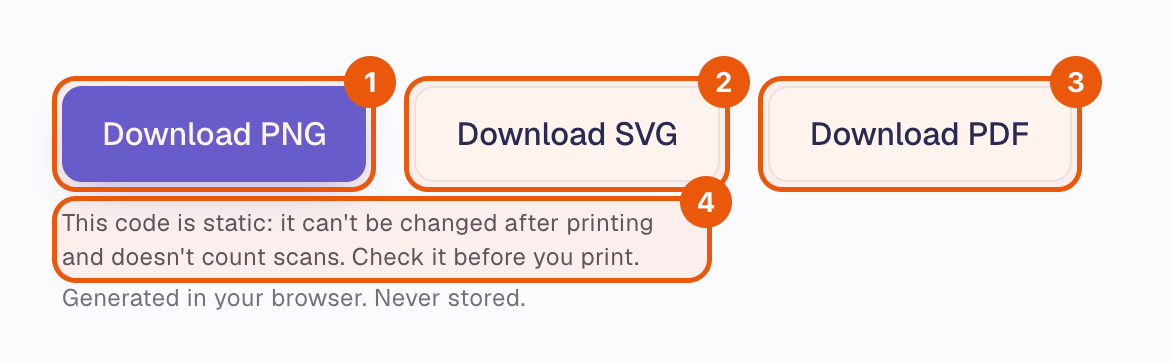
- PNG: a 1024 by 1024 pixel image for screens and documents.
- SVG: a vector file that stays sharp at any size.
- PDF: a print-ready document.
- A reminder that a static code cannot be changed after printing and does not count scans.
第 8 步:打印前先测试
用手机摄像头扫描这个码,确认它打开的是正确的页面,或显示的是正确的信息。然后按最终尺寸测试,最好用打印出来的样张,并在人们实际使用它的光线条件下测试。可以的话,再换一部手机试试。
请在大量打印之前完成这一步。静态码把数据保存在图案中,所以打印后无法修改。如果有信息出错,您需要生成新的码,并替换已打印的那个。
应避免的常见错误
打印得太小:拿在手里扫描的码至少应有约 2 × 2 cm。距离较远时,每条边至少应为扫描距离的十分之一,所以在 3 米外读取的码宽度需要约 30 cm。
去掉留白:ISO/IEC 18004 要求码的四周留出 4 个模块宽的空白静区。不要裁掉它,也不要让文字或图片紧贴着码。
对比度不足:浅淡的颜色、杂乱的背景和深底浅码的设计都会增加扫描难度。请保持深色的码配纯净的浅色背景。
徽标过大:如果码无法扫描,请缩小徽标或将其移除。
常见问题
- 制作二维码真的免费吗?
- 是的。无需注册,无水印,永不过期,并且可以免费下载 PNG、SVG 和 PDF 文件。
- 二维码打印后还能更改吗?
- 不能。这些是静态码,内容保存在图案本身之中。要更改内容,请生成新的码并替换已打印的那个。好处是没有任何服务器能让这个码停止工作。
- 打印应该用哪种文件格式?
- 专业印刷请用 SVG,因为它在任何尺寸下都保持清晰。PDF 也可直接用于印刷。屏幕显示和文档请用 PNG。
- 二维码会过期吗?
- 不会。数据直接编码在图案中,没有可以被关停的重定向服务器。
- 我输入的内容会被保存在某处吗?
- 不会。网站在您的浏览器中生成二维码,不会把您输入的内容发送到我们的服务器。
相关工具
- URL 二维码生成器 — 把链接变成静态二维码。
- WiFi 二维码生成器 — 让客人扫一下就能连接您的网络。
- vCard 二维码生成器 — 通过印刷的名片分享联系方式。
- 二维码模板 — 从现成的设计开始。
- 二维码扫描器 — 通过图片文件查看二维码包含的内容。